







Description
The Thumbnail Builder Prompt tool on soloBizOS.com is designed to help you design stunning, high-converting thumbnails for products, advertisements, and YouTube videos. It helps attract more clicks and boosts your overall online visibility.
ARTICLE CONTENTS
+ Key Interface Components.
+ Results & Multi-Platform Integration.
+ How to show list of thumbnail prompts in soloBizOS.com?
+ How do I create a prompt to instruct the AI to generate thumbnail images in soloBizOS.Com?
+ Some actual thumbnail images created by Prompt using the instructions in this article.
DETAILED CONTENT
1. Key Interface Components
The interface is highly intuitive (it like Illustration 02 bellows), allowing you to customize every aspect of your visual content:
Platform (Number 12): Select the specific platform where the thumbnail will be used (e.g., Instagram Post).
Marketing Goals (Number 13): Define the primary objective (e.g., Increase clicks).
Desired Image Size (Number 14): Choose the exact format and resolution dimensions.
Main Emotion / Tone (Number 15): Set the emotional mood of the design (e.g., Excited).
Main Topic & Sub-message (Numbers 16 & 17): Input the core theme and the tagline to be featured.
Subject & Character Action (Numbers 18 & 19): Detail the product/subject and their facial expressions or poses.
Primary Colors & Image Style (Numbers 20 & 21): Choose your color palette and visual medium (e.g., 3D render, realistic photo, or flat vector).
Technical Requirements (Number 22): Select image quality and resolution standards.
Text and Branding Settings (Numbers 23 - 27): Configure text content, language on the image, and logo placement.
Generate Button (Number 28): Triggers the AI to create your custom prompt.
2. Results & Multi-Platform Integration
After processing your input, the system produces a highly detailed prompt (section Number 29):
Copy Prompt Button (Number 30): Easily copy the generated text to your clipboard.
Direct Integration (Numbers 31, 32, 33,34): Send the command directly to AI platforms, including ChatGPT, Gemini, Grok, and DeepSeek.
3. Core Benefits
Optimizes Visual Content: Tailors designs to specific platforms and user actions.
Time-Saving: Eliminates the guesswork of manual prompt engineering.
Brand Consistency: Keeps marketing and branding aligned with your messaging.
4. How to show list of thumbnail prompts in soloBizOS.com?
To do it, you click on AI Prompt Generator (1) menu => Then you click on Thumbnail Builder Prompt (2) sub-menu => Then you can see list of thumbnail prompts like Illustration 01 bellows:
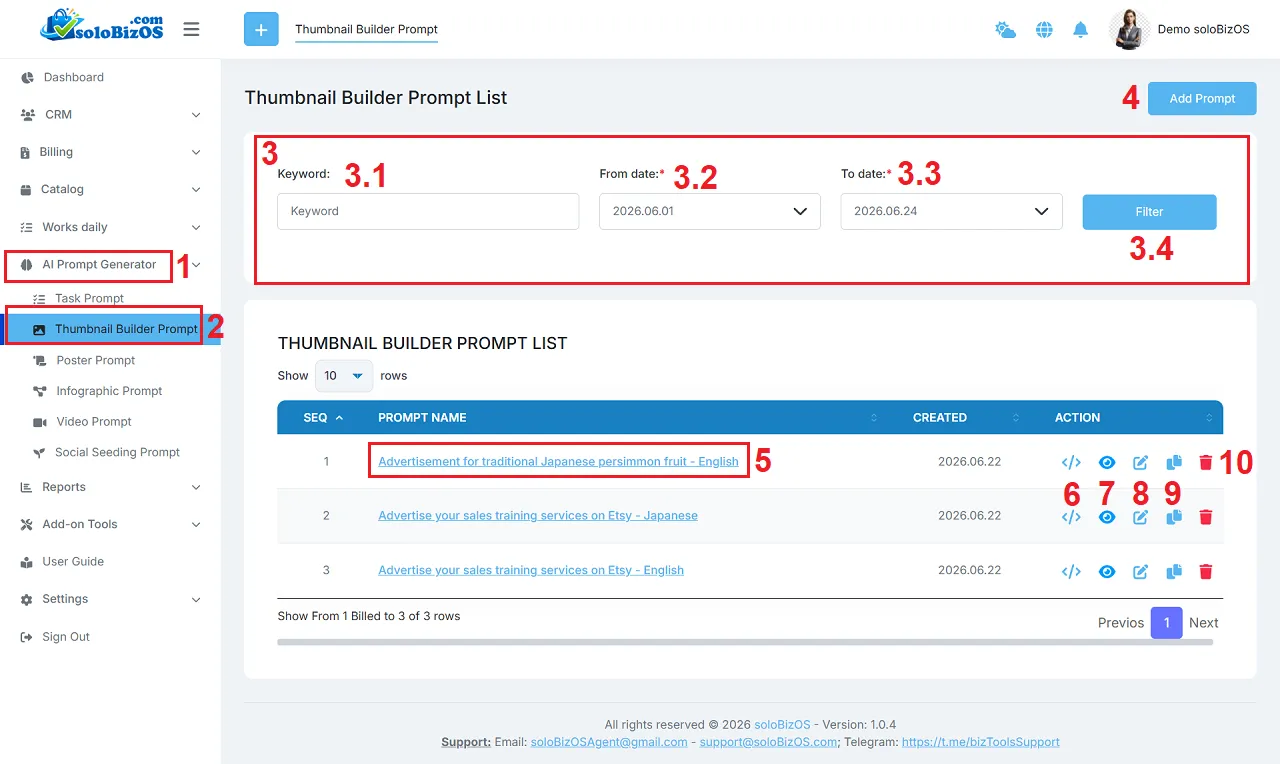
Illustration 01: List of Thumbnail Prompts
* Explain:+ 3rd area: It's used to filter data of list of thumbnail prompts.
+ Add prompt (4) button: You click on this button to create a new thumbnail prompt.
+ Prompt Name (5) and Eye Icon (7): You click on this to show the thumbnail prompt details.
+ Code Icon (6): You click on this icon to get its prompt.
+ Pencil icon (8): You click on this icon to modify its prompt.
+ Duplicate Icon (9): You click on this icon to duplicate that prompt.
+ Trash icon (10): You click on this icon to delete its prompt.
5. How do I create a prompt to instruct the AI to generate thumbnail images in soloBizOS.Com?
To do it, in list of thumbnail prompts like Illustration 01 above, you click on Add Prompt (4) button => In Thumbnail Builder Prompt form like Illustration 02 bellows, you need input or select the suitable values from the box in that form => Final, you click on Prompt Generate (28) button to create Thumbnail Prompt.
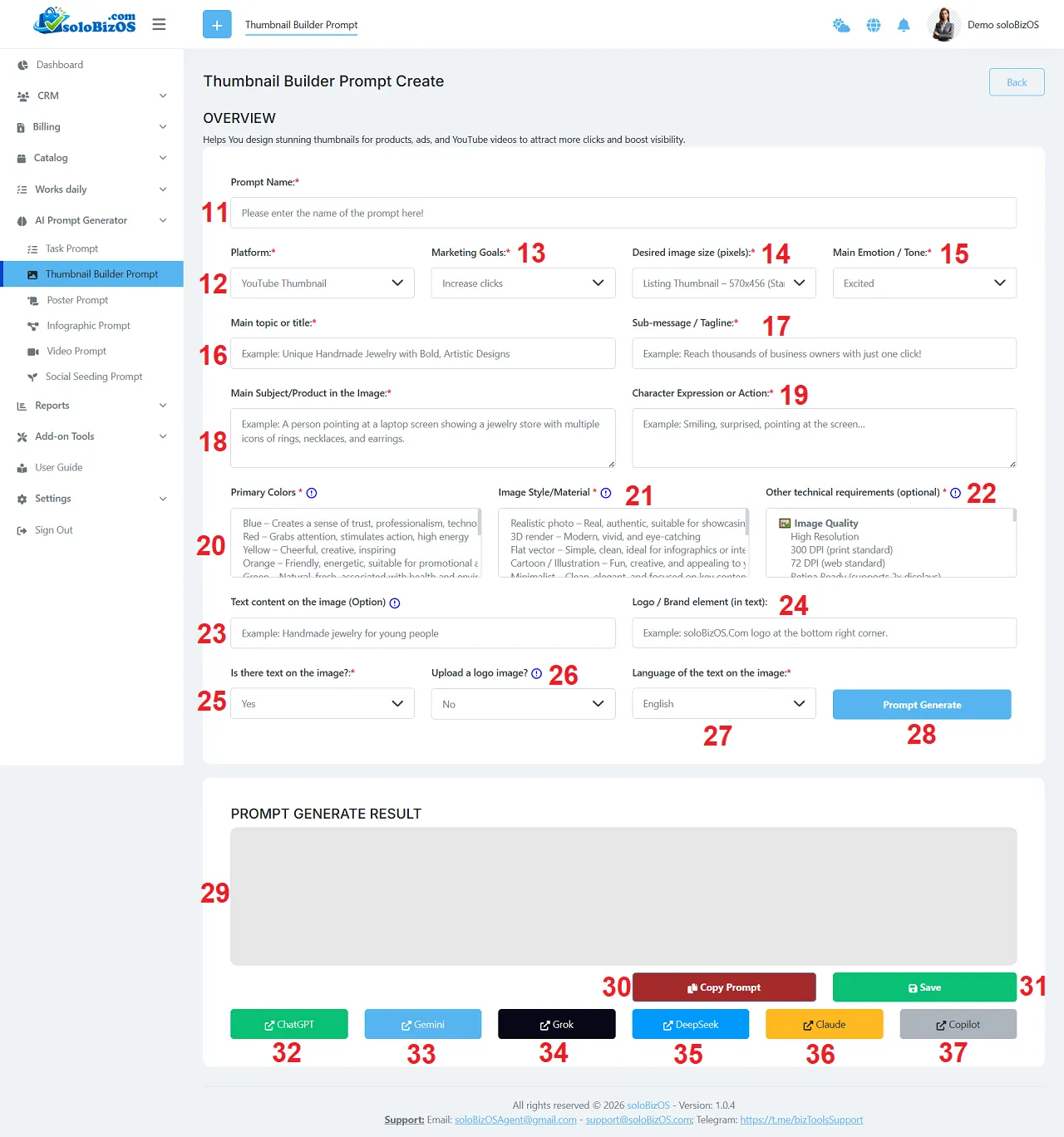
Illustration 02: The Interface of Thumbnail Builder Prompt Tool
+ Platform (12) box: You need choose the suitable value with your platform that you want to create your thumbnail which's suitable with that platform.
+ 20th - 22th box: You can press the Ctrl key and click on multiple selections to select multiple values.
+ 32th - 37th button: You click on there buttons to open the suitable AI assistant to paste your prompt there!
6. Here are some actual thumbnail images created by Prompt using the instructions above:

Advertisement for traditional Japanese persimmon fruit - Thumbnail Image 01
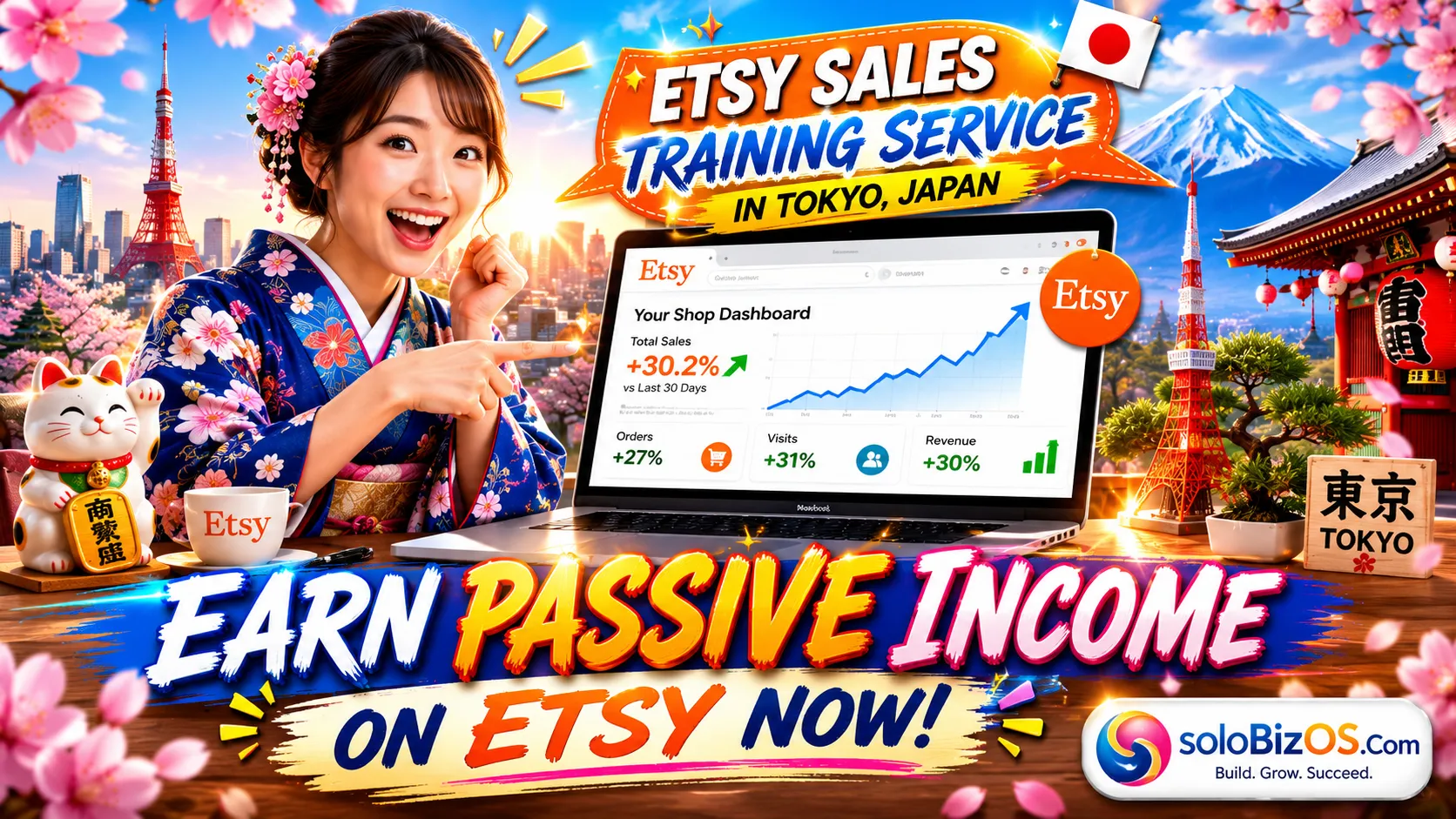
Advertisement for traditional Japanese persimmon fruit - Thumbnail Image 02
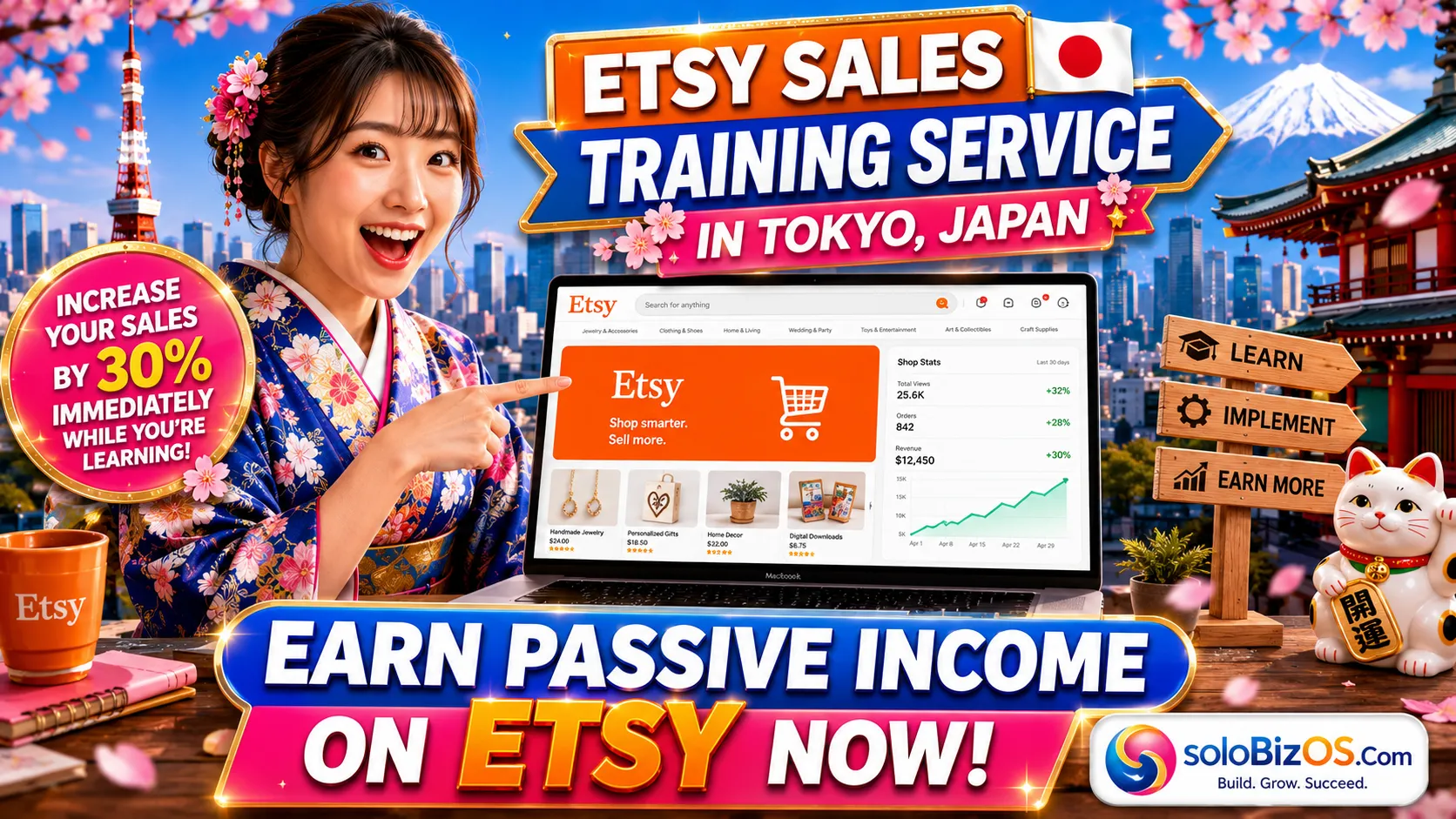
Advertise your sales training services on Etsy - Thumbnail Image 03
*For any questions, please contact us via Email: soloBizOSAgent@gmail.com Or support@soloBizOS.com Or Contact us via Form CONTACT for a prompt response.