



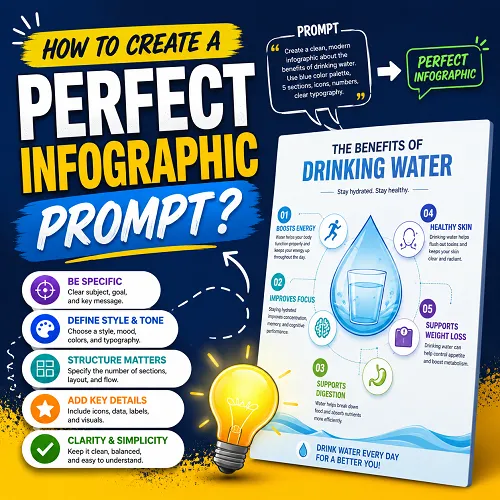

Description
(soloBizOS) - In today's AI-powered world, creating professional infographics no longer requires advanced design skills. With tools like ChatGPT, Google AI Studio, Midjourney, Leonardo AI, and other AI image generators, anyone can produce visually stunning infographics within minutes. However, the quality of the final result depends heavily on one critical factor: the prompt.
A well-crafted infographic prompt serves as a blueprint that guides AI in generating clear, engaging, and visually appealing designs. Without proper instructions, AI may create cluttered layouts, inconsistent styles, or content that fails to communicate your message effectively.
In this guide, you'll learn how to create a perfect infographic prompt step by step. We'll explore the essential elements of a high-converting prompt, common mistakes to avoid, and practical examples you can use immediately. Whether you're a marketer, business owner, content creator, SEO specialist, or educator, mastering infographic prompt writing can dramatically improve the quality of your visual content and save countless hours in the design process.
Let's dive into the proven framework for creating infographic prompts that generate professional, audience-focused, and highly shareable results every time.
ARTICLE CONTENT
+ How to show list of infographic prompts in soloBizOS.com?
+ How to create a new infographic prompt in soloBizOS.com?
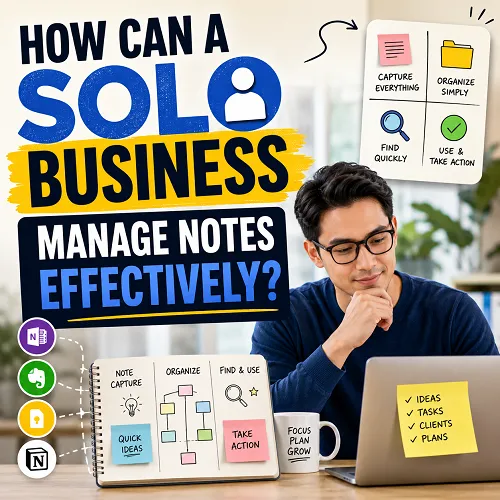
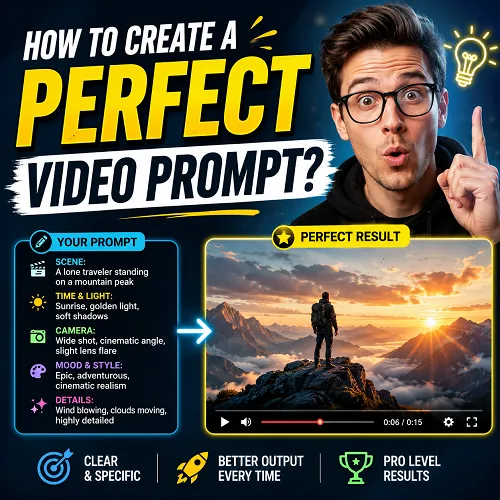
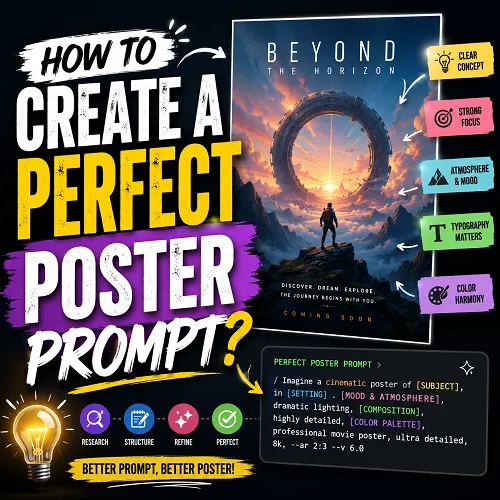
+ Some actual infographic images created by Prompt using the instructions in this article.
DETAILED CONTENT
1. How to show list of infographic prompts in soloBizOS.Com?
Todo it, you click on AI Prompt Generator (1) menu => next you click on InfoGraphic Prompt (2) sub-menu => then you can see list of infographic prompts like Illustration 01 bellows:
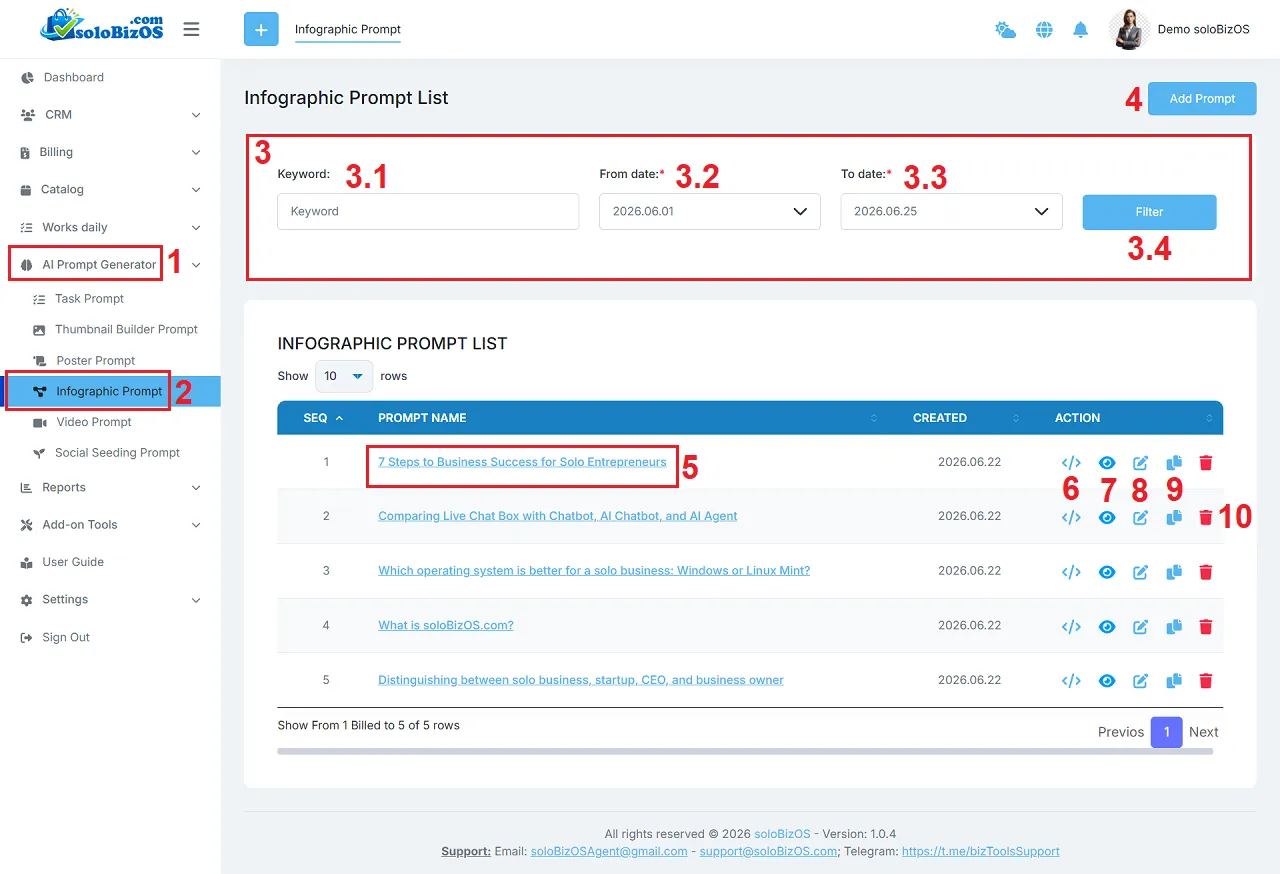
Illustration 01: List of InfoGraphic Prompts
* Explain:+ 3rd area: It's used to filter data of list of poster prompts.
+ Add prompt (4) button: You click on this button to create a new poster prompt.
+ Prompt Name (5) and Eye Icon (7): You click on this to show the poster prompt details.
+ Code Icon (6): You click on this icon to get its prompt.
+ Pencil icon (8): You click on this icon to modify its prompt.
+ Duplicate Icon (9): You click on this icon to duplicate that prompt.
+ Trash icon (10): You click on this icon to delete its prompt.
2. How to create a new infographic prompt in soloBizOS.com?
To do it, in list of infographic prompts like Illustration 01 above, you click on Add Prompt (4) button => In infographic Builder Prompt form like Illustration 02 bellows, you need input or select the suitable values from the box in that form => then, you click on Prompt Generate (22) button to create infographic Prompt.
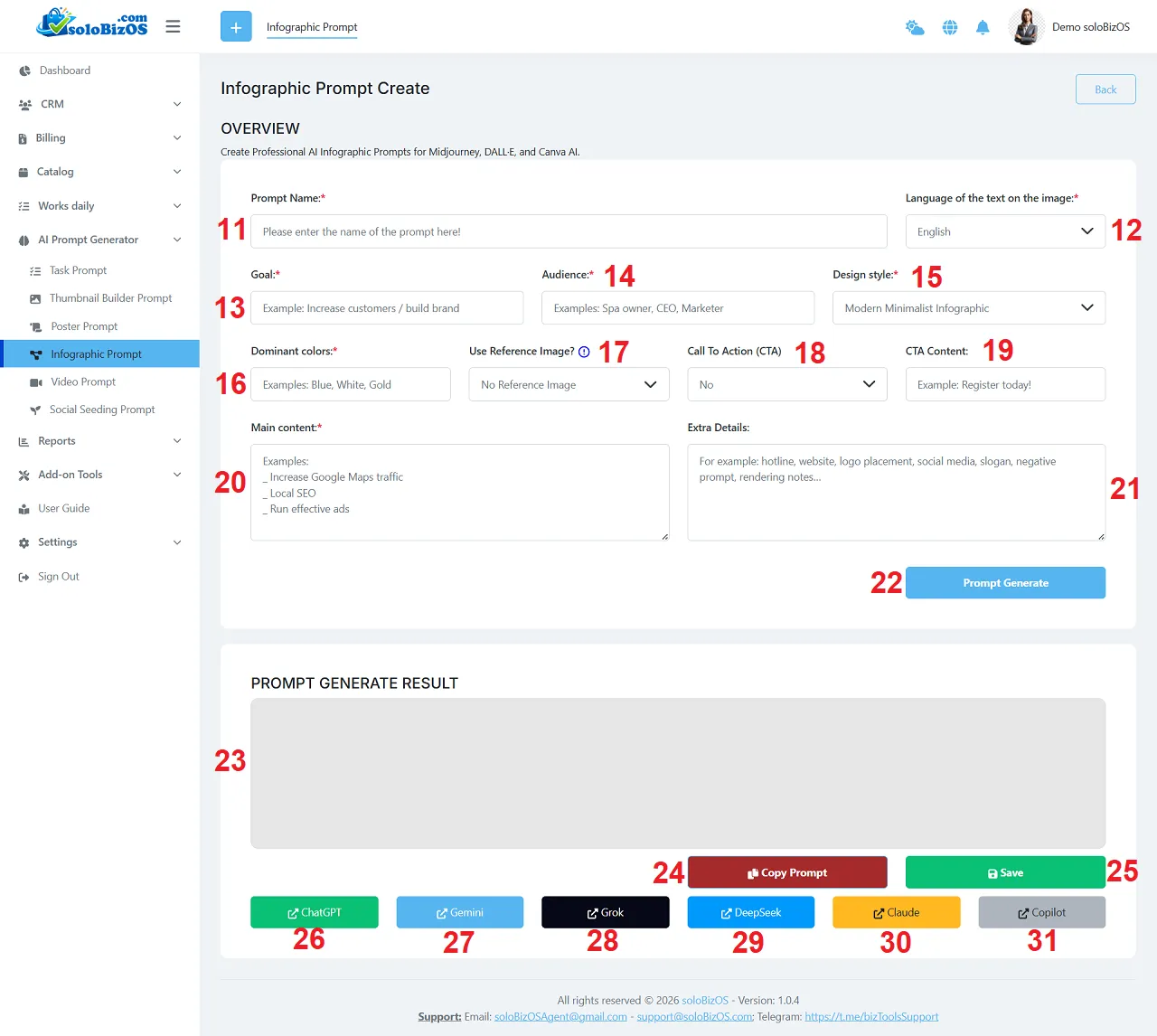
Illustration 02: Create a new infographic prompt
+ 26th - 31th button: You click on there buttons to open the suitable AI assistant to paste your prompt there!
3. Here are some actual infographic images created by Prompt using the instructions above:
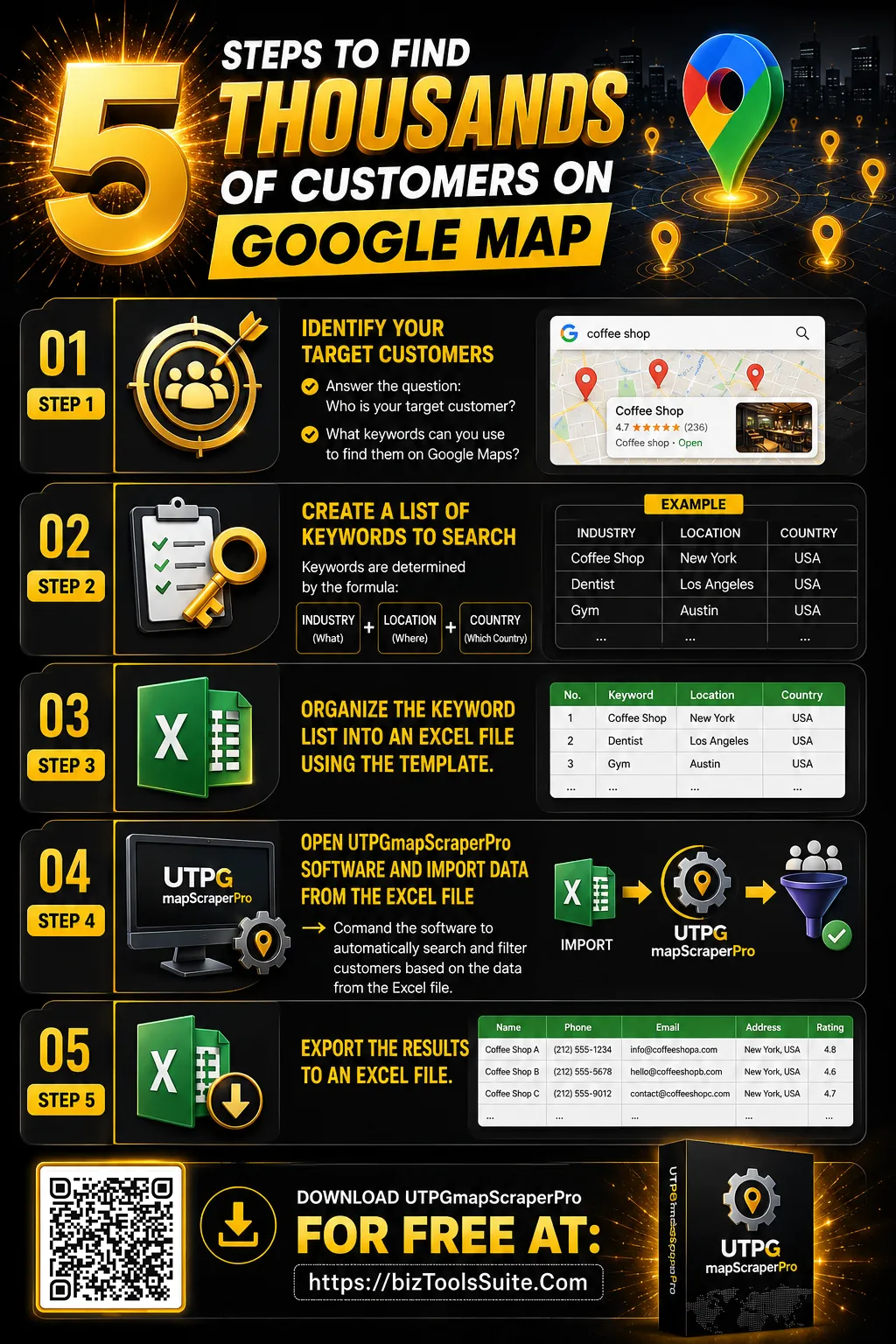
5 steps to find thousand clients - InfoGraphic 01
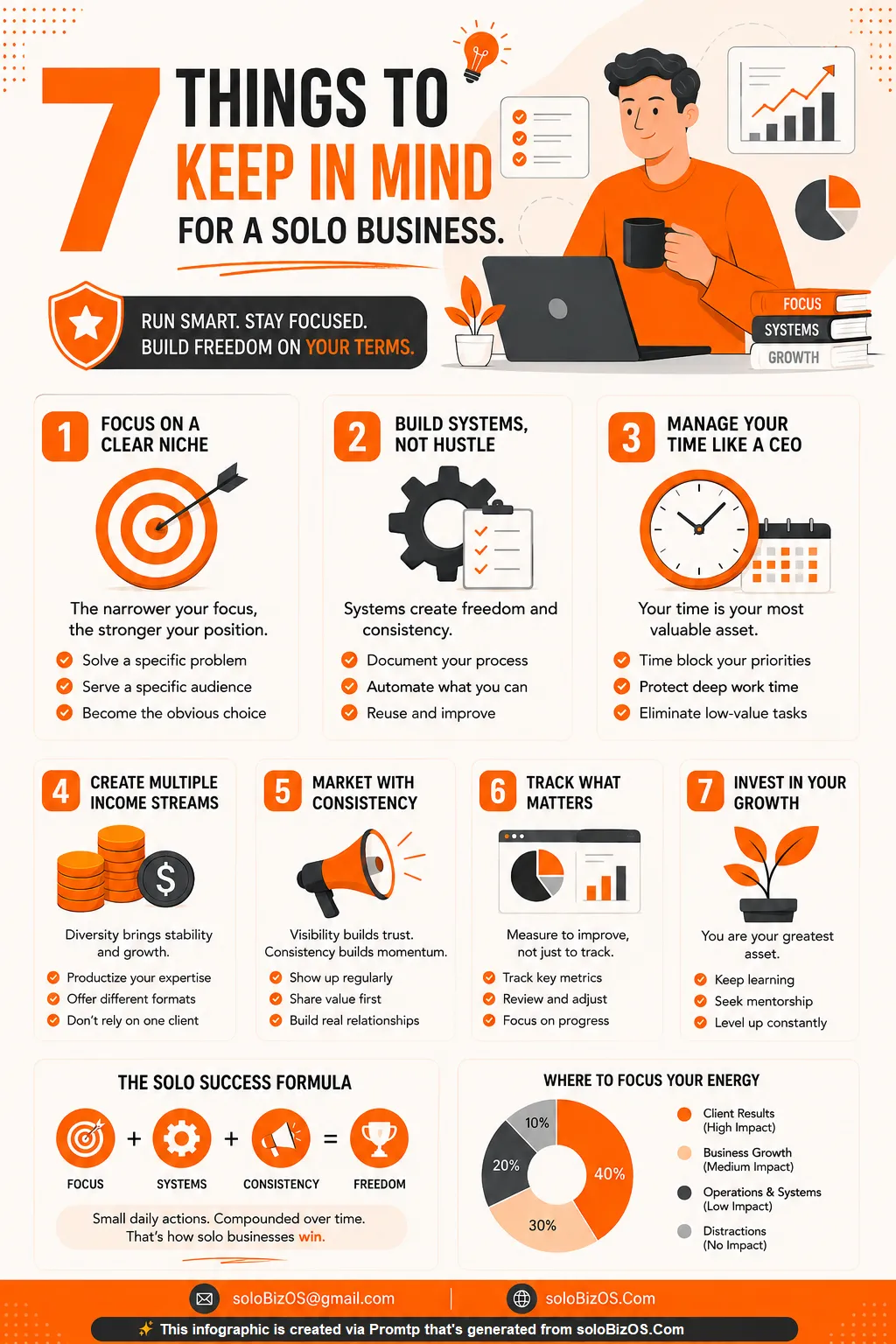
7 things keep in mind for a solo business - InfoGraphic 02
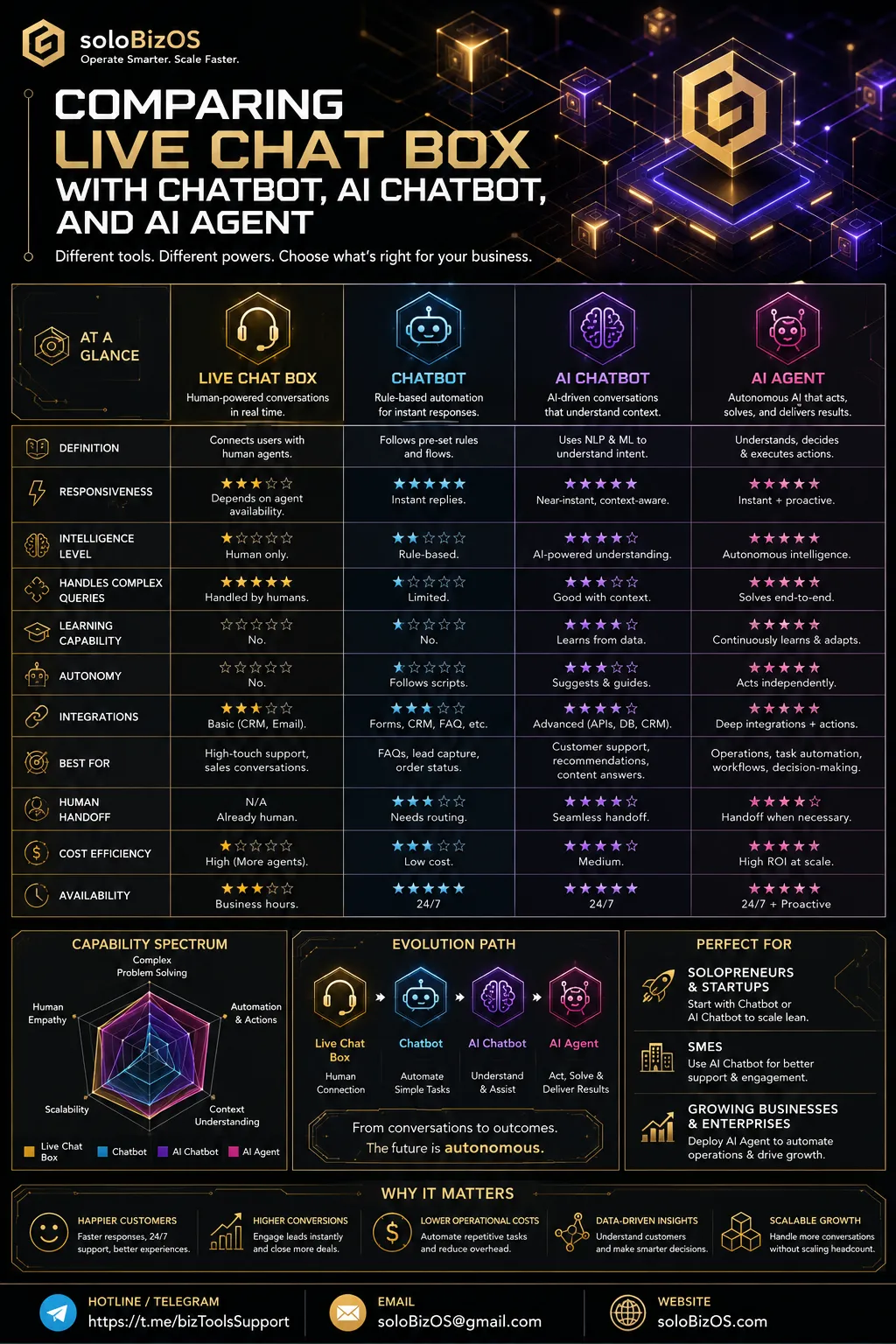
Comparing Live Chat Box with Chatbot, AI Chatbot, and AI Agent
*For any questions, please contact us via Email: soloBizOSAgent@gmail.com Or support@soloBizOS.com Or Contact us via Form CONTACT for a prompt response.