








Description
The Social Seeding Prompt tool on soloBizOS.com is a powerful utility designed to help you instantly create high-quality social media content. It streamlines your multi-platform content workflow, saving you time while boosting audience engagement.
ARTICLE CONTENTS
+ Key Interface Components.
+ Results & Multi-Platform Integration.
+ Core Benefits
+ How to show list of social seeding prompts in soloBizOS.com?
+ How to create social seeding prompt in soloBizOS.Com?
DETAILED CONTENT
1. Key Interface Components
The interface is designed for maximum efficiency (like Illustration 02 bellows), allowing you to define every detail of your social media post:
Platform (Number 12): Select your target social network (e.g., Facebook, LinkedIn, Twitter).
Content Type & Goal (Numbers 13 & 14): Define the format (e.g., poll, story, long-form post) and the primary objective (e.g., engagement, brand awareness).
Target Audience & Key Message (Numbers 15 & 16): Specify who you are talking to and the core message you want to deliver.
Context & CTA (Numbers 17 & 18): Provide supporting details or data and define the specific call-to-action you want the audience to take.
Media & Formatting (Numbers 19 - 22): Include links to relevant media, set the desired length, and choose the number of variations to generate.
Tone, Creativity & Language (Numbers 23 - 25): Fine-tune the voice (e.g., Professional, Informal), creativity level, and the output language.
Generate Button (Number 26): Triggers the AI to draft your social media content.
2. Results & Multi-Platform Integration
Once processed, the system generates a tailored set of social media posts (section Number 27):
Copy Prompt Button (Number 28): Conveniently copy the content to your clipboard.
Direct AI Integration (Numbers 30 - 35): Instantly send your request to ChatGPT, Gemini, Grok, or DeepSeek to refine or finalize your posts.
3. Core Benefits
Boosts Engagement: Generates high-quality content tailored to specific platforms and audiences.
Streamlines Workflows: Manages complex multi-platform social media campaigns from a single interface.
Saves Time: Automates the drafting process, allowing you to focus on strategy and growth.
4. How to show list of social seeding prompts in soloBizOS.com?
To do it, you need click on AI Prompt Generator (1) menu => Then you click on Social Seeding Prompt (2) sub-menu => After that you can see list of social seeding prompts like Illustration 01 bellows.
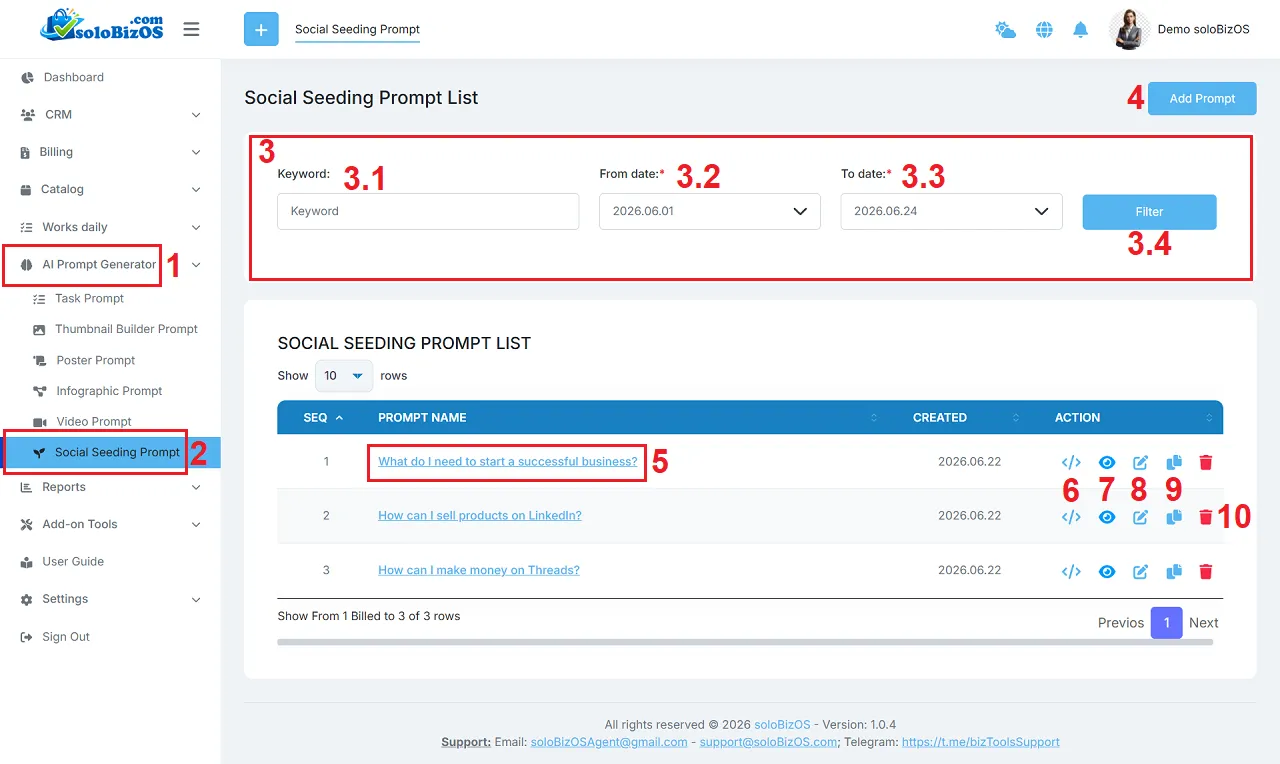
Illustration 01: List of Social Seeding Prompts
+ 3rd area: It's used to filter data of list of thumbnail prompts.
+ Add prompt (4) button: You click on this button to create a new social seeding prompt.
+ Thumbnail Prompt Name (5) and Eye Icon (7): You click on this to show the social seeding prompt details.
+ Code Icon (6): You click on this icon to get its prompt.
+ Pencil icon (8): You click on this icon to modify its prompt.
+ Duplicate Icon (9): You click on this icon to duplicate that prompt.
+ Trash icon (10): You click on this icon to delete its prompt.
5. How to create social seeding prompt in soloBizOS.Com?
To do it, you need click on Add Prompt (4) button => In Social Seeding Prompt Form like Illustration 02 bellows, you need input or select the suitable value for all box in this form => Then, you click on Prompt Generate (26) button to create the social seeding prompt.
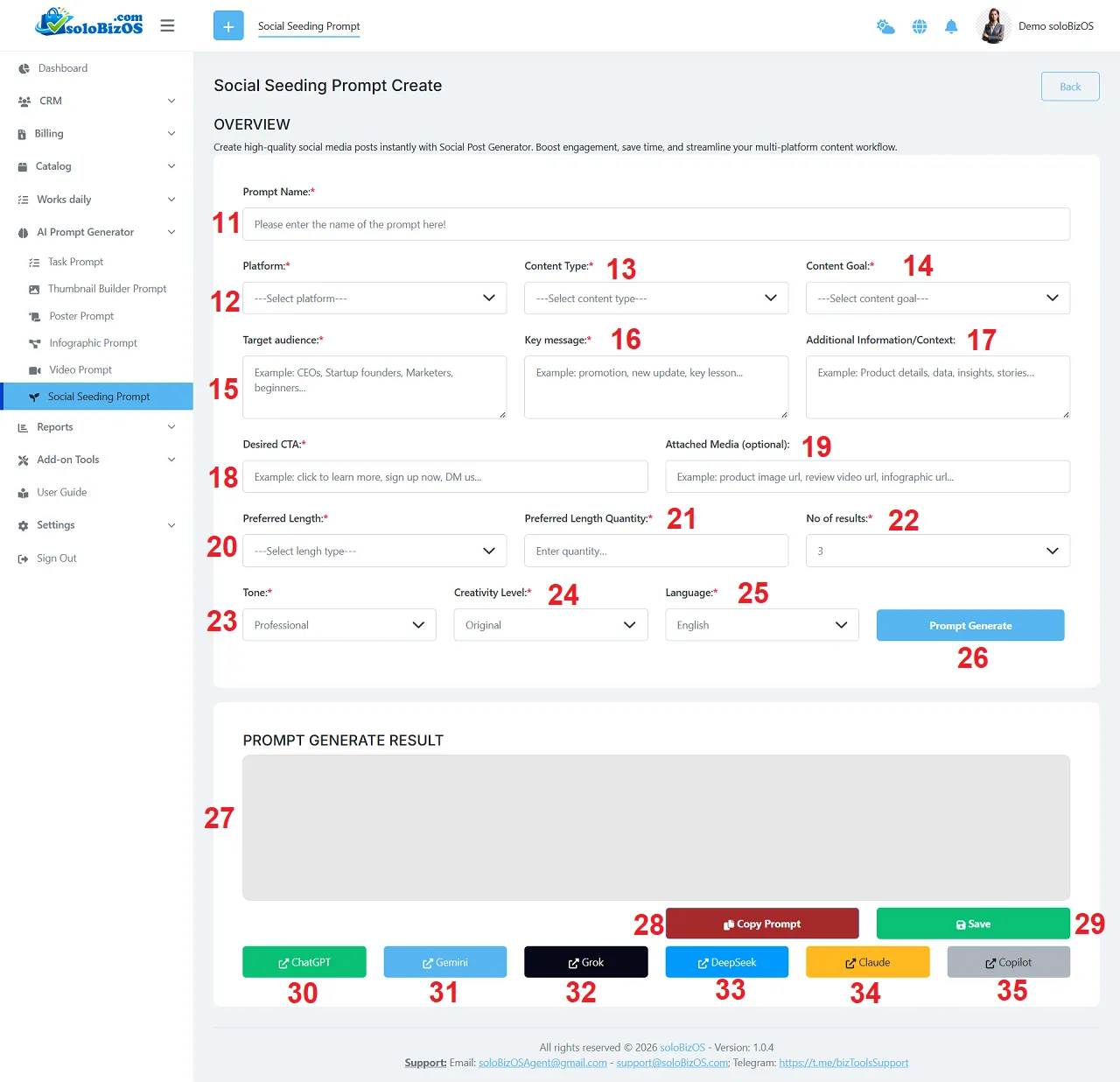
Illustration 02: Create a new social seeding prompt
6. Notes
+ Platform (12): You need choose the suitable platform. After that Content Type (13) box has the suitable values.
+ Language (25): You need choose the suitable language that AI's writing content in that language.
+ 30th - 35th button: You click on there buttons to open them to paste your prompt there.
*For any questions, please contact us via Email: soloBizOSAgent@gmail.com Or support@soloBizOS.com Or Contact us via Form CONTACT for a prompt response.